Scheduled messages
Messages that go to every guest at the right moment of the stay, what triggers them, and what “Waiting for” and “Not sent” mean.
What a scheduled message is
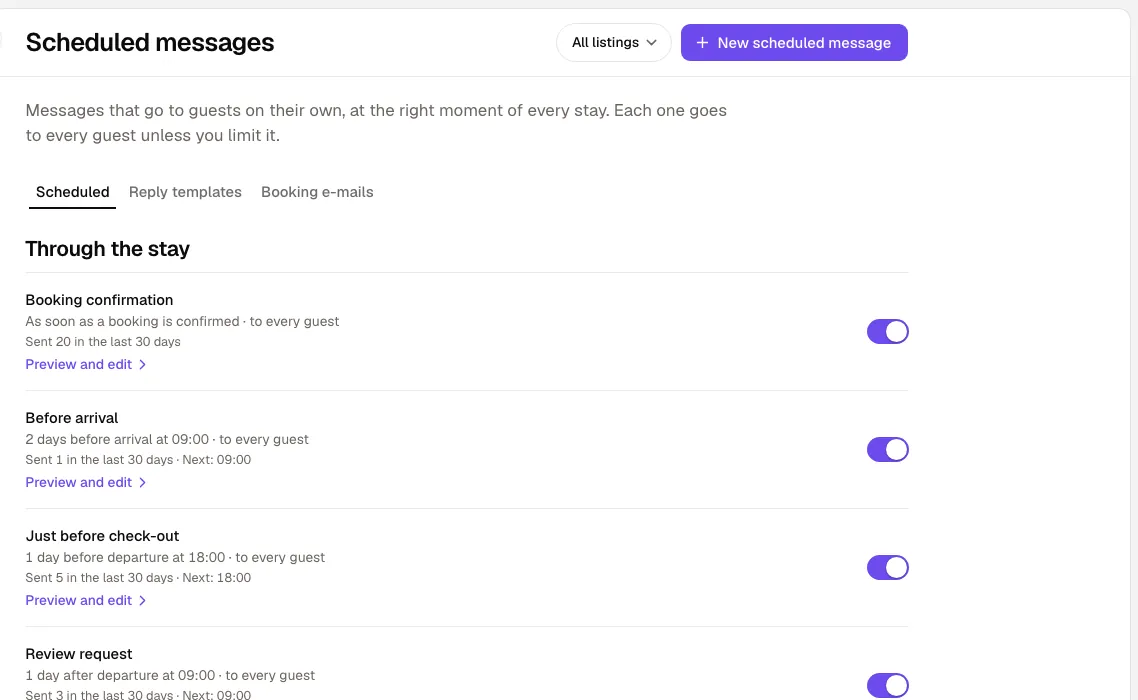
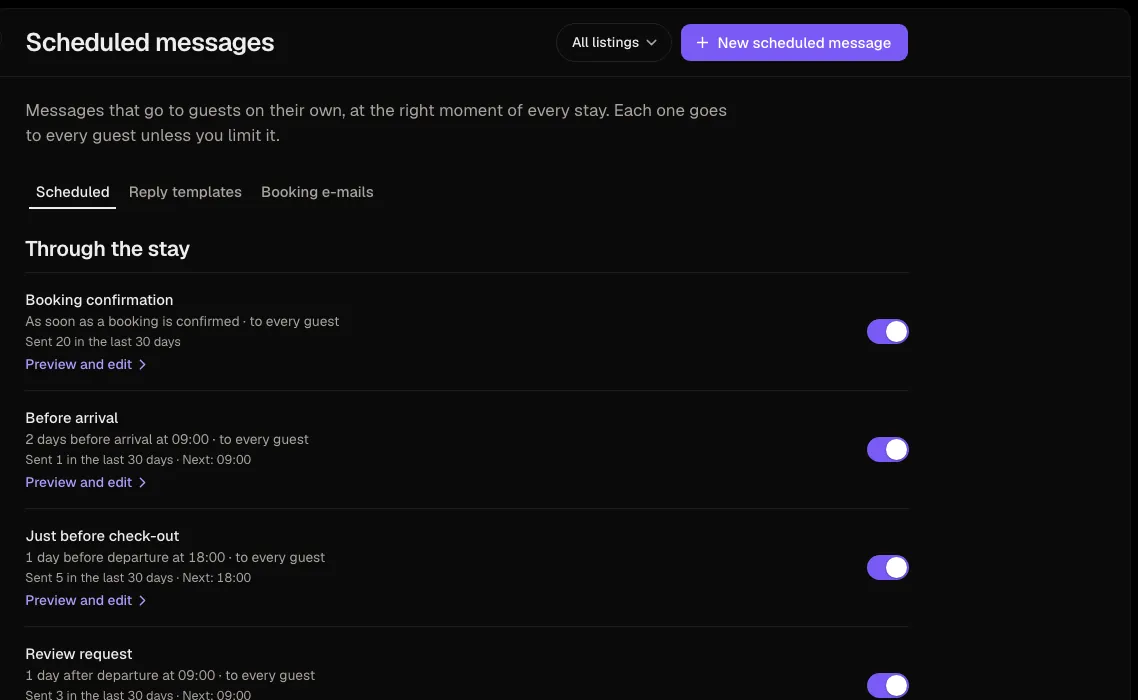
Scheduled messages go to guests on their own at the right moment of every stay. Each one goes to every guest unless you limit it. Four are built in: Booking confirmation, Before arrival (the address, check-in and how to get in), Just before check-out and Review request.
Each row says when it goes and to whom, how many were sent in the last 30 days and the next one, with Preview and edit and a switch to turn it on or off. Restore built-in messages brings back the originals.
Create one
- 1Press New scheduled message.
- 2Give it a Name. Under When, choose the trigger (below), the Days and the time (At). Times are in each property’s own time zone.
- 3Under Message, pick a template; Edit the message changes its words.
- 4Under Send as, choose Platform message, or e-mail when there is none, Platform message only or E-mail only.
- 5Limit it if you need to: Send to guests from (platforms) and Where it sends (properties).
- 6Leave On switched on and press Save.
Triggers
| Trigger | When it sends |
|---|---|
| A booking is confirmed | At once, or some minutes later. |
| Before arrival | A number of days before, at a time. |
| Arrival day | On the day, at a time. |
| Before departure | A number of days before check-out. |
| Departure day | On the day, at a time. |
| After departure | A number of days after, at a time. |
| A booking is cancelled | At once, or some minutes later. |
| A booking request arrives | Before you answer the request. |
| A guest writes for the first time | If nobody answered within the minutes you set. Never twice in a thread. |
What the states mean
| You see | Meaning |
|---|---|
| Next · … | The next time it goes out for this stay. |
| Overdue since … | It could not go at its time; it goes out as soon as it can. |
| Waiting for … | The platform is disconnected. It goes out when the platform is connected again. |
| Not sent: … was not connected | The platform stayed disconnected, so this message was dropped. |
| Could not be sent | Delivery failed. See the reason in the inbox. |
| Skipped | You pressed Skip for this guest. |
| Paused | Your plan does not include scheduled messages, or it ended. |
One guest only
On a booking (under Messages) or beside a conversation, each scheduled message has Send now and Skip (do not send this one to this guest).
Booking e-mails (the third tab) lists the e-mails guests who book with you get on their own: Booking confirmation, Payment received, Online check-in link, Booking changed, Booking cancelled, Hold ends soon and Hold ended. Open one to see it as the guest does; Logo, colour and signature on the same tab sets how they look, and the review link.