Connect Airbnb, Booking.com or Szállás.hu
The exact steps: signing in with Airbnb, or choosing Channex.io in the Booking.com or Szállás.hu extranet and pasting your property ID.
Start
- 1Open Platforms and press Connect a platform.
- 2Answer Where do you rent it?: Airbnb, Booking.com or Szállás.hu.
- 3Answer Which listing? and press Continue.
- 4Follow the steps for your platform below. The sheet shows where you are: Connect, Match listings, Go live.
Airbnb
- 1Press Sign in with Airbnb. A window opens at Airbnb.
- 2Sign in and allow Hostemi to manage your prices, availability, bookings and messages.
- 3Come back to Hostemi. The sheet waits (Waiting for Airbnb) and continues by itself. If you closed the window, press Open again.
Your password never reaches us.
Booking.com
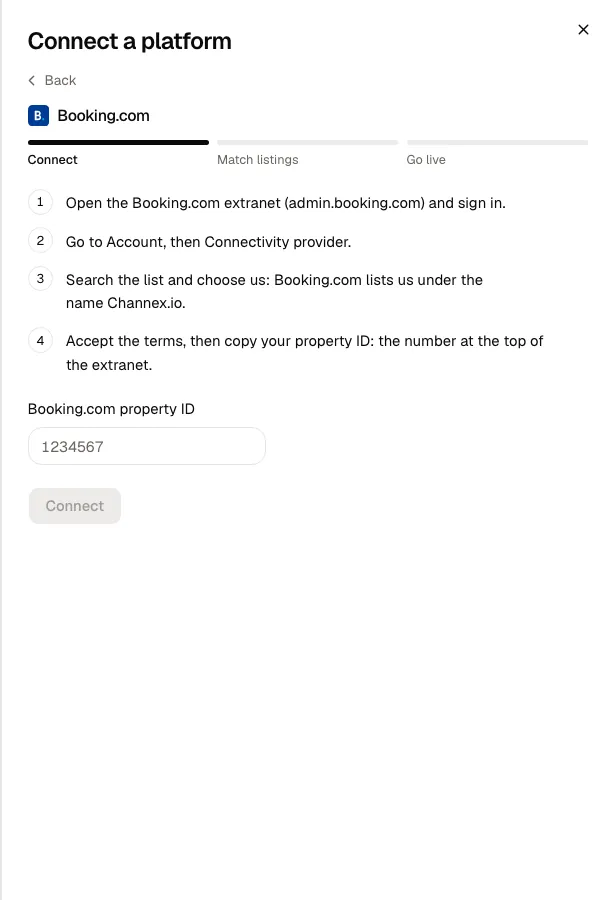
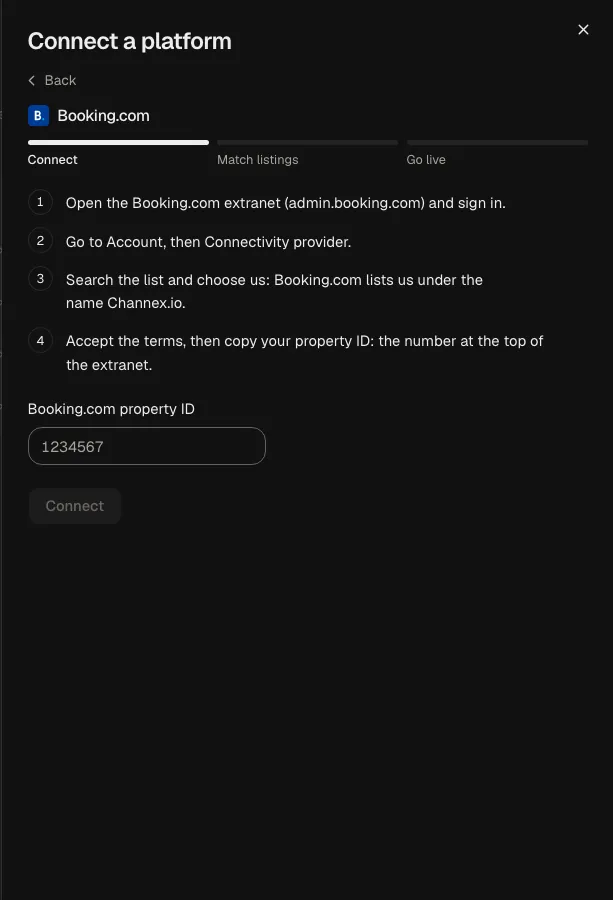
- 1Open the Booking.com extranet (admin.booking.com) and sign in.
- 2Go to Account, then Connectivity provider.
- 3Search the list and choose Channex.io: that is us.
- 4Accept the terms, then copy your property ID: the number at the top of the extranet (also in the address bar after hotel_id=).
- 5Back in Hostemi, paste it into Booking.com property ID and press Connect.
Szállás.hu
- 1Sign in to your Szállás.hu partner account.
- 2If Szállás.hu asks for your channel manager, choose Channex.io: that is us.
- 3Copy your Szállás.hu property ID (it is next to your property name) and paste it into Szállás.hu property ID.
- 4Press Connect.
Under Advanced, Also send closed nights and stay rules is on. Leave it on unless Szállás.hu asked you to send prices only.
Expedia, Agoda, Trip.com, Hostelworld, Despegar
The same as Booking.com: the steps in the sheet say where the platform’s own connectivity page is, then you paste the property ID (Trip.com calls it Hotel Code; Despegar also asks its user name and API password, kept encrypted). Trip.com, Hostelworld and Despegar also ask the currency you use there: they take your prices exactly in it.
Vrbo
- 1Remove the calendar links (iCal) between Vrbo and other sites first: they would overwrite what Hostemi sends.
- 2Choose the currency you use on Vrbo and press Continue to Vrbo sign-in.
- 3In the screen that opens, press Create, choose Vrbo, type your Vrbo user name and password, press Authenticate, then type the code Vrbo sends by SMS. It may show “Channex.io”: that is us. Hostemi never sees your Vrbo login.
- 4Press I have signed in.
- 5Match each listing to its Vrbo listing. If one is not in the list, type its Vrbo listing number: Vrbo shows it under the listing name, as the Property ID.
Hopper and Hopper Homes
Hopper is for hotels with a signed Hopper contract (hotelpartners.hopper.com). Tick that you have one, choose the currency of the contract, press Connect, then choose which listings Hopper sells. With a net contract, lower Hopper’s prices in Prices & stay rules.
Hopper Homes is for holiday homes. Sign up at Hopper (hosts.hopper.com), choose Channex as your software there, then type that e-mail and the name guests see. Hostemi makes each listing on Hopper Homes from your listing, after listing what is still missing (a description of 200+ characters, the registration number, the address, beds, house rules and so on). Hopper Homes reviews each listing; once it is published, match it and go live. Hopper Homes sells in US dollars: set its prices in dollars in Prices & stay rules.
If the check fails
After Connect, Hostemi checks with the platform (Checking with …). If it refuses, check the property ID and that Channex.io is chosen on the platform, then try again.
Next: Match and go live