Change the price or stay rules of some nights
Pick the nights in the calendar, then change the price, open or close them, or set a minimum stay in the side panel.
Pick the nights
- 1Open Calendar.
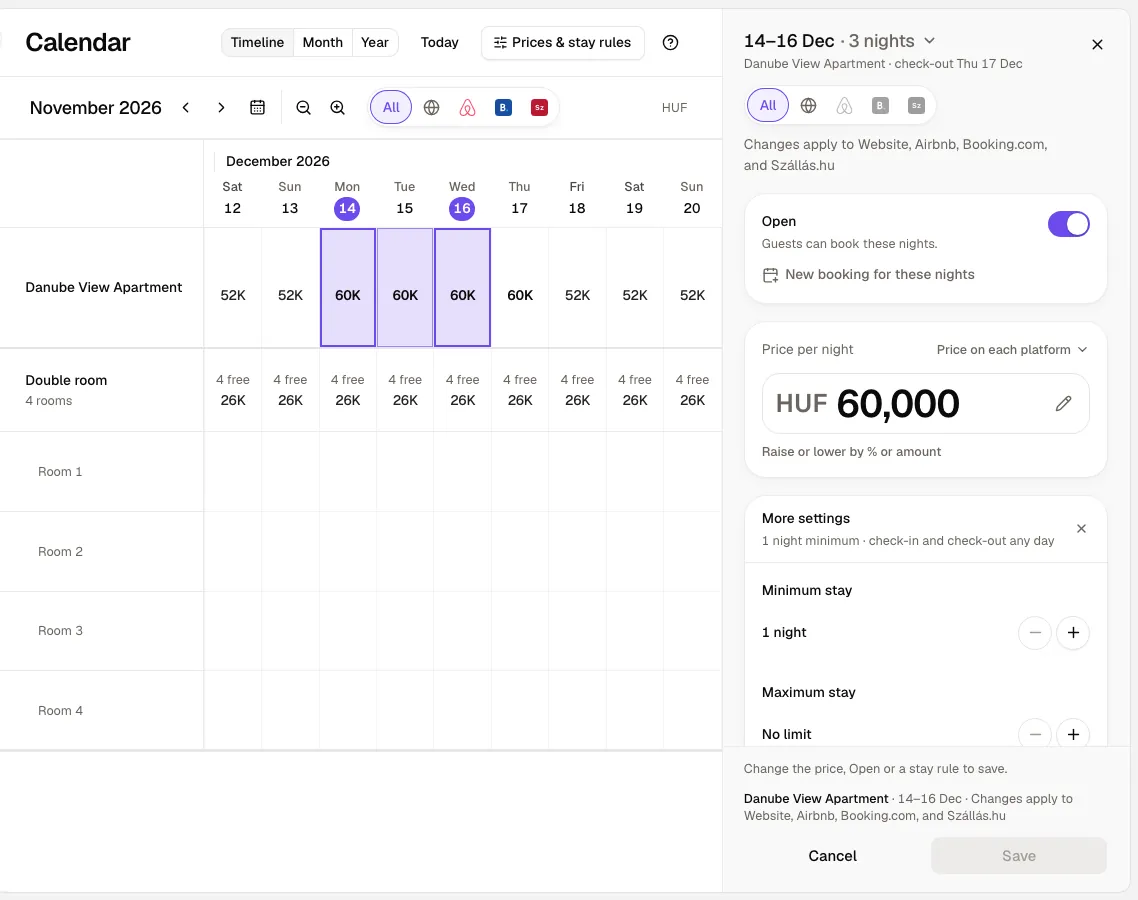
- 2On a computer, drag across the nights, or click the first night and then the last. On a phone, tap the first night (the bar says Now tap the last night, or Edit for just this one.), then the last.
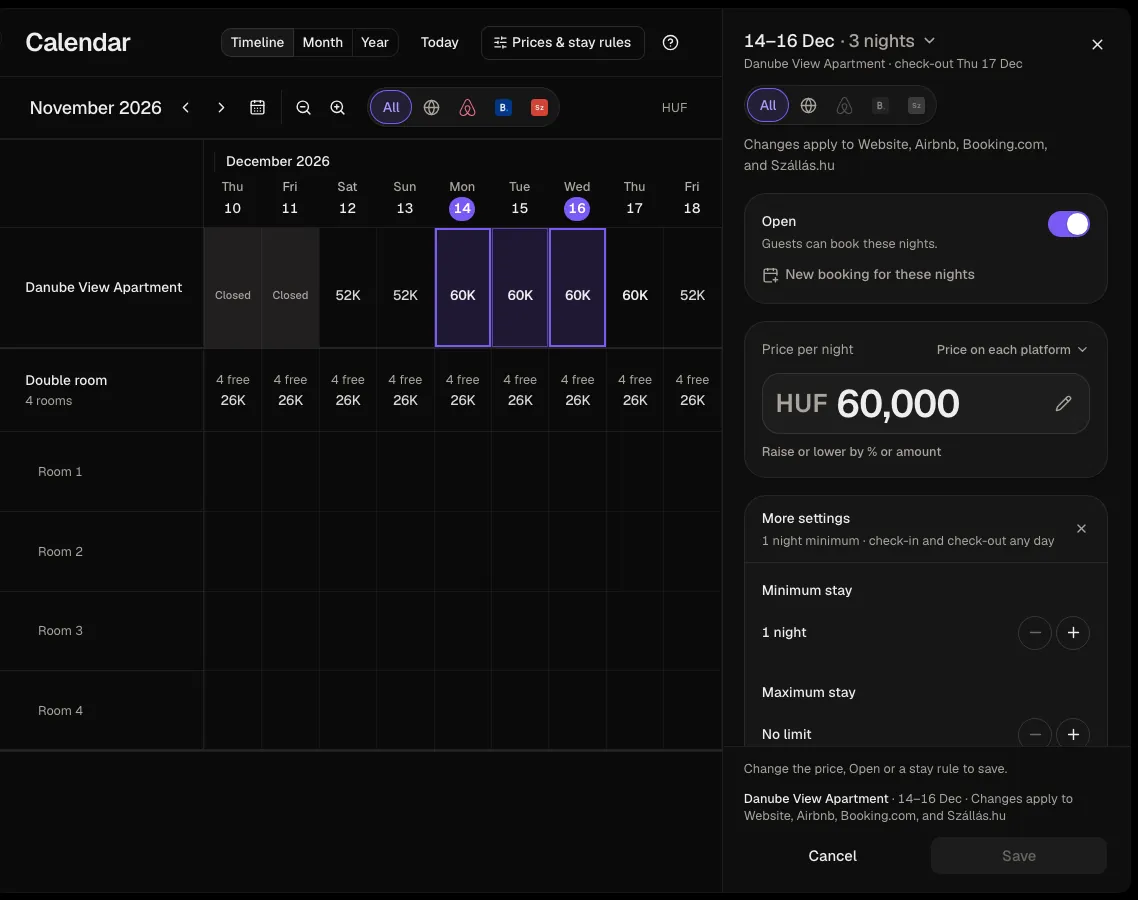
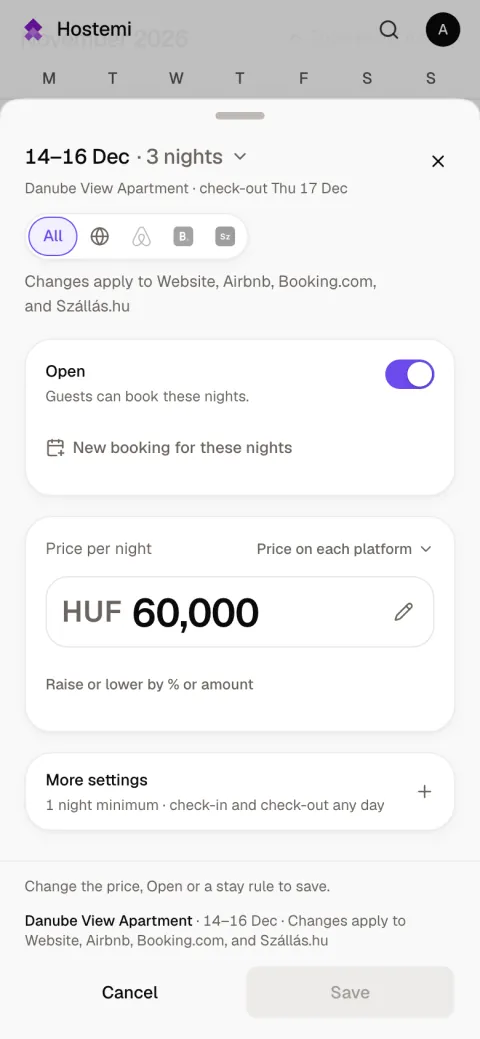
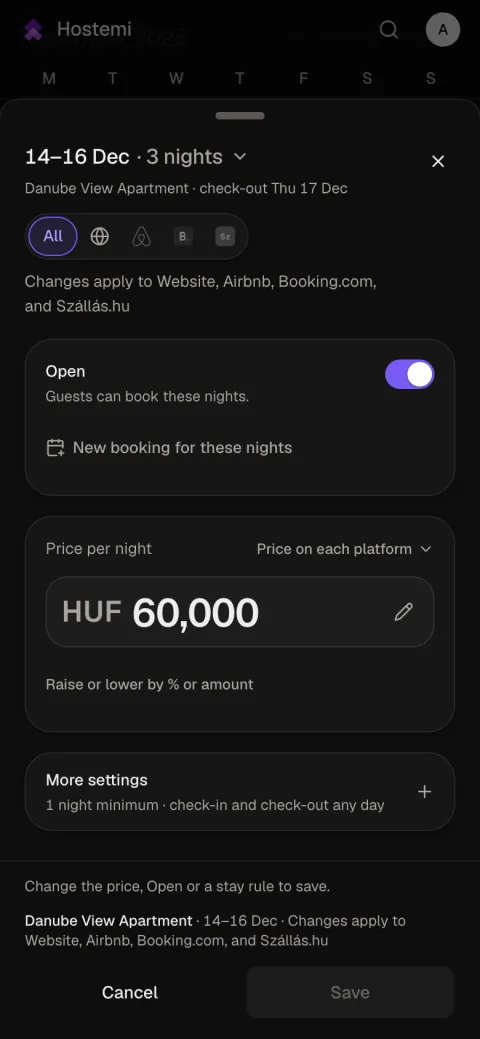
- 3The side panel opens beside the calendar; on a phone it slides up as Edit nights.
Hold ⌘ or Ctrl while you click to add more date ranges, or other listings of the same property, to the same change.
What the panel shows
- At the top: the nights (tap them to change the dates), the listing and the check-out day, and the platform switch. Changes apply to names who gets the change.
- The open card: Open, Closed, Partly open or Booked, with the reason, a switch, and New booking for these nights.
- Price per night, with Price on each platform to see what each one gets.
- More settings: Minimum stay, Maximum stay, Check-in allowed, Check-out allowed and a Note only you and your team see.
- At the bottom: one line that sums up the change, Cancel and Save.
Change the price
- 1Tap the price under Price per night and type the new one.
- 2Or press Raise or lower by % or amount: type a number under Adjust by, choose % or the currency, and use a minus for a discount (−10). Set one price instead goes back.
- 3Press Save. You see Saved. Sending to your platforms. The panel stays open on the same nights.
Open, close and stay rules
- Switch the open card off to close the nights, on to open them.
- Under More settings, change the minimum or maximum stay with − and +, or switch off Check-in allowed or Check-out allowed.
- Which price: shown when the listing has more than one price (for example a non-refundable one). Standard changes one price, All prices every price of these nights.
Good to know
Booked nights stay booked whatever you change: the open card says Booked. Bookings stay as they are. Closing a night with bookings closes only its remaining free rooms.
On a phone
The same panel, as a sheet from the bottom. More settings opens with the +.
Leaving without saving
If you close the panel with changes, the app asks: Keep editing or Discard changes. Nothing is sent until you press Save.
The right-click menu
Right-click a night (long-press on a phone) for shortcuts. On an open night: Close arrivals, Close nights, Set price, Add booking and Why this night?; a listing with several rooms also has Block rooms. On a closed night, Open for booking replaces the closing options; on a blocked one, Change block appears.
Something missing from this page? Write to [email protected], or use the form on the Help page.