Reading the calendar
The three views, what the prices, colours, dots and marks mean, and how to see one platform at a time.
The views
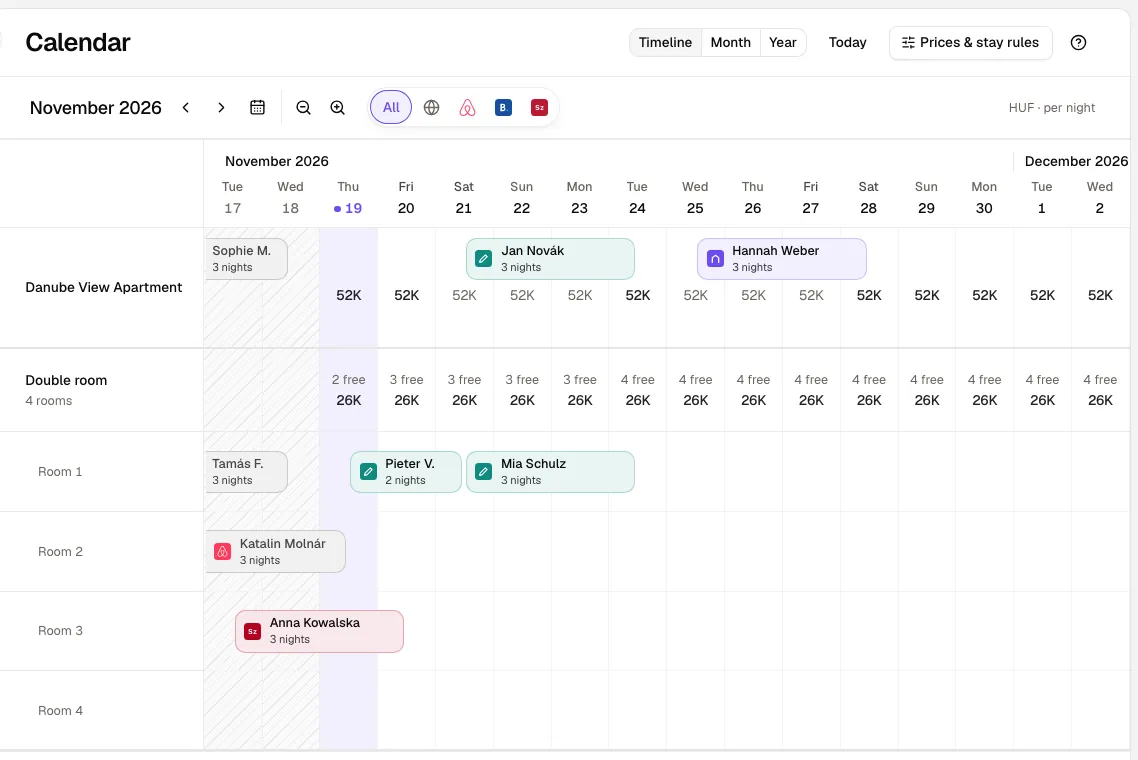
Switch the view at the top of Calendar:
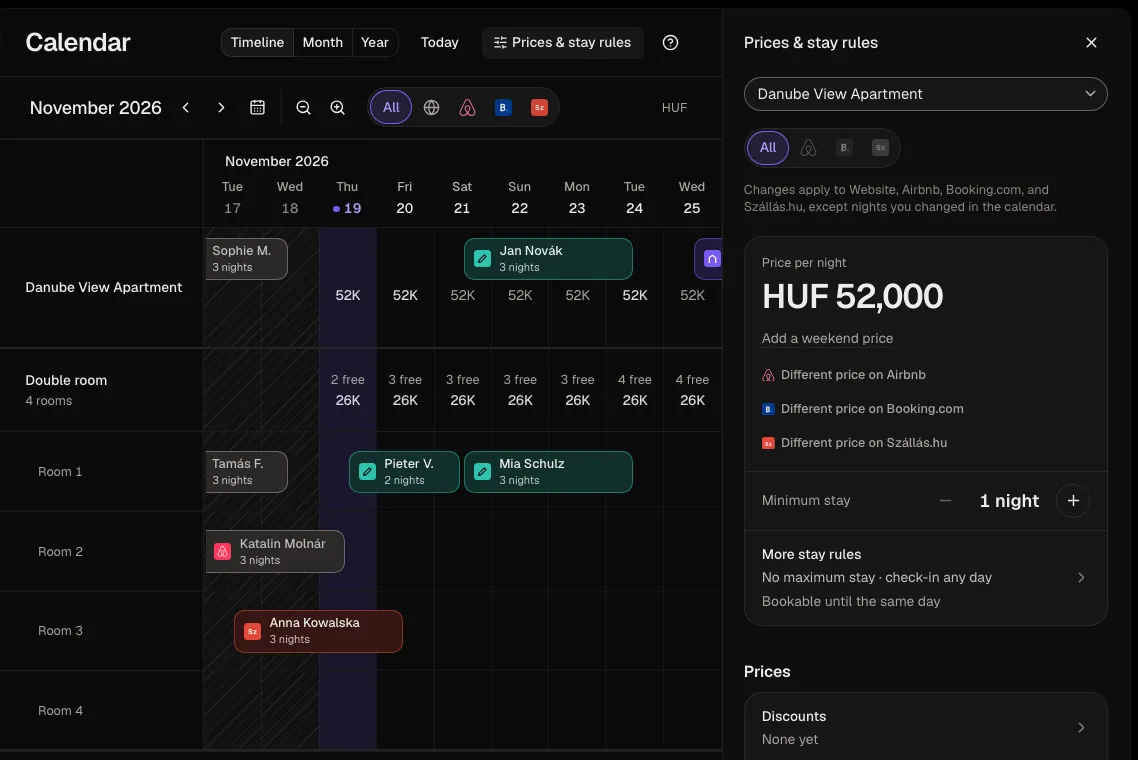
- Timeline: one row per listing, nights from left to right. A listing with several rooms gets a row per room under it. Best for several listings.
- Month: one listing, a month at a time.
- Year: the whole year. Tap a month to open it.
The bar above the nights has Today, Earlier and Later, Go to a date (the calendar icon) and Show more nights / Show larger nights.
On a phone
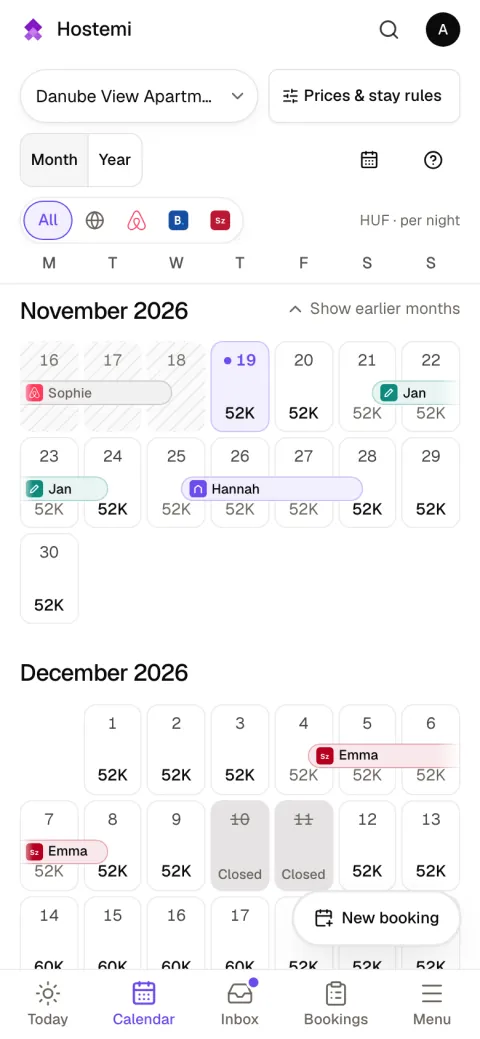
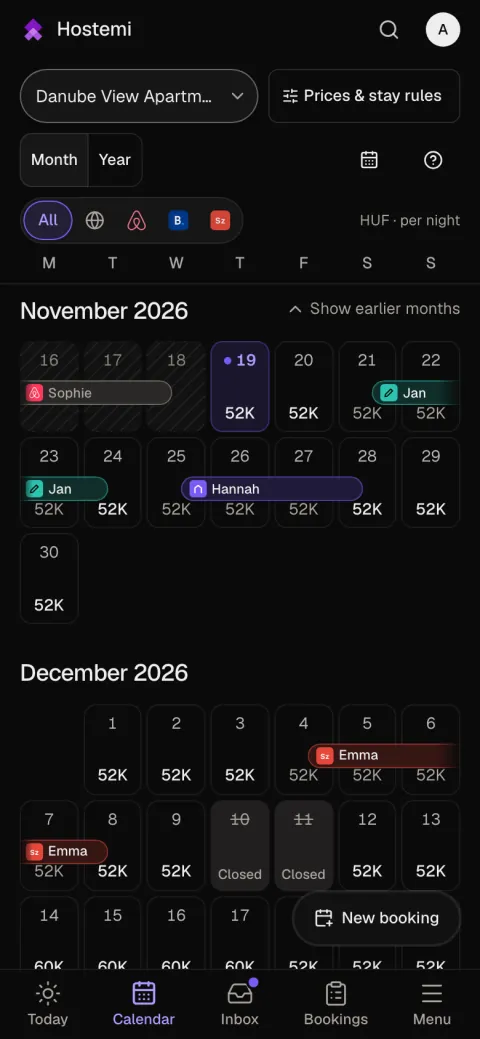
A phone shows one listing at a time, with the months one under the other: choose the listing at the top. The views are Month and Year; New booking floats at the bottom.
What a night shows
Press What do the marks mean? (the question mark in the calendar bar) for the legend on screen. In short:
| You see | It means |
|---|---|
| 52K on a free night | The price of a free night, in the listing’s currency. |
| A price greyed under a stay | The price of a booked night. |
| 2 free | Rooms still free that night, for a listing with several rooms. 1 free marks the last room. |
| +2 | More stays that night: tap the night to see them. |
| 2+ | The minimum stay, in nights. |
| Closed | Nobody can book that night. |
| Owner stay | Blocked because you use the place. Maintenance is the same for repairs. |
| A hatched night | Date passed: nothing to sell or change. |
| A coloured band | A season sets the price. |
| A bar across nights | A stay, in its platform’s colour. |
| A mark on the left or right edge | No check-in (left edge) or no check-out (right edge). |
| A small dot | A platform is closed or has other stay rules that night (prices are not marked). Hover it, or open the night, to see which. |
| Sending | A change is on its way to your platforms. |
| Refused by the platform | A platform did not take the last change for that night. |
| Overbooked | More bookings than rooms on that night. |
See one platform at a time
The switch above the nights shows All by default, then the website (the globe) and one mark per platform. Choose one to see exactly what it gets: its prices, its closed nights and its stay rules.
A platform with no values of its own is greyed in the switch of the side panel: it gets the All values. See Different on one platform.
Bookings in the calendar
Hover a stay on a computer for the guest, the dates, the number of guests and the total, with Message and Open booking. Tap it on a phone to open the booking.
The line under the calendar sums up The nights on screen: how much is booked, the money from stays, check-ins and free nights.
Why does a night look like this?
Right-click a night (long-press on a phone) and choose Why this night?. The panel shows whether it can be booked on each platform and your website, the minimum and maximum stay, check-in and check-out, and how the price is made.